Key takeaways
- First work out which problem you have: Google hasn’t added your site to its index, or it has and other sites rank above you. A two-minute
site:search tells you. - Most “not indexed” problems come from a handful of settings: a new site, a “noindex” tag, a robots.txt block, a missing sitemap or a site that is down or password protected.
- Google Search Console is free and shows exactly why a page isn’t in Google. Set it up before you change anything else.
You search for your business, and your website isn’t there. Or you search for the service you sell, and competitors show up while you don’t. It’s one of the most stressful things a small business owner can see, and it usually has a simple cause.
This guide walks you through finding that cause and fixing it, in the order that saves the most time.
Step 1: Find out which problem you have
“Not showing up on Google” is really one of two different problems, and the fixes are completely different:
| Problem | What it means | How to tell |
|---|---|---|
| Not indexed | Google hasn’t added your page to its index, so it can’t show it for any search | A site: search returns nothing |
| Not ranking | Google has your page but shows other sites first | A site: search finds your pages, but you don’t appear for the searches you care about |
To check, go to Google and type site:yourdomain.com (with your own address, no spaces). If your pages appear, Google has indexed them, so skip ahead to indexed but not ranking. If nothing appears, start with the fixes below.
Step 2: Set up Google Search Console
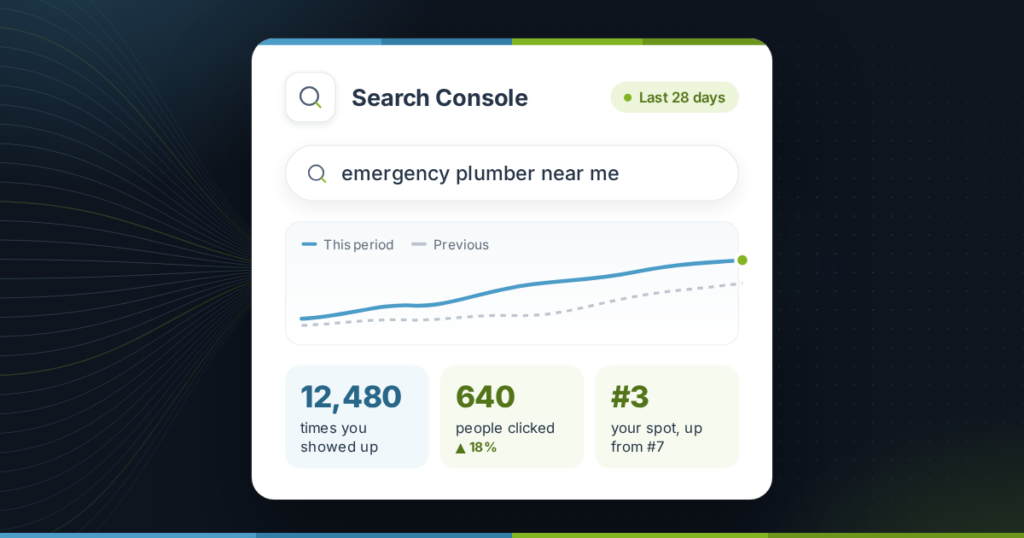
Before you guess, let Google tell you. Google Search Console is free, takes about 15 minutes to set up, and is the only place Google reports why it isn’t showing a page.
- Add your website as a property and verify that you own it.
- Open Pages under Indexing to see which pages Google has indexed, which it hasn’t, and the reason for each.
- Paste any page address into the search bar at the top to run the URL Inspection tool. It shows whether that page is in Google and, if not, why.
The reasons Search Console gives map directly onto the fixes below.
Seven reasons Google isn’t indexing your site, and the fix for each
1. Your site or page is brand new
Google needs to discover a page before it can index it. For a new website, that can take anywhere from a few days to a few weeks. If your site is only days old, this is the most likely reason.
The fix: submit your sitemap (reason 4) and use Request indexing in the URL Inspection tool for your most important pages. Then give it time. Requesting indexing over and over doesn’t speed things up.
2. A “noindex” setting is telling Google to stay away
A noindex tag asks search engines not to show a page. It is often switched on while a site is being built and then forgotten at launch. Search Console reports this as Excluded by ‘noindex’ tag.
The fix: on WordPress, go to Settings > Reading and make sure Discourage search engines from indexing this site is unticked. Also check your SEO plugin’s settings for the affected pages. Other website builders have a similar “hide from search engines” switch in their SEO or site settings. You can confirm what a page is sending with our free Meta Tag Checker.
3. Your robots.txt file is blocking Google
The robots.txt file tells search engines which parts of your site they may visit. One wrong line, such as Disallow: /, blocks your whole site. Search Console reports this as Blocked by robots.txt.
The fix: open yourdomain.com/robots.txt and look for rules that block pages you want in Google. Our free Robots.txt Checker tests whether Google is allowed to reach a page.
4. Google can’t find your pages
Google discovers pages through links and sitemaps. A page with no links pointing to it, and no sitemap listing it, can go unnoticed.
The fix: make sure you have an XML sitemap (most website builders and SEO plugins create one automatically), then submit it under Sitemaps in Search Console. Link to your important pages from your menu or home page. Our free XML Sitemap Checker confirms your sitemap works and lists the right pages.
5. Your site is down, slow or behind a password
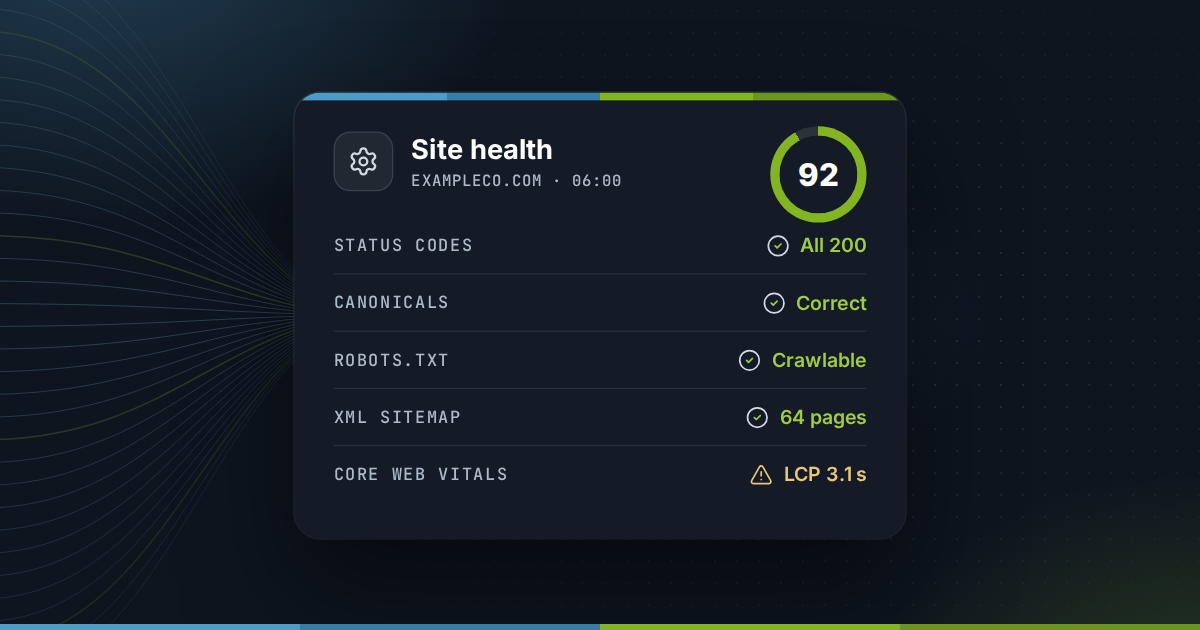
If Google can’t load your pages, it can’t index them. Common causes are a “coming soon” or maintenance mode left switched on, a password-protected staging site, an expired SSL certificate, or a server that keeps timing out.
The fix: open your site in a private browser window while logged out. If you see a login screen, a maintenance page or a security warning, Google sees it too. Switch off maintenance mode, renew the certificate, or ask your host about errors.
6. Google chose a different version of the page
When several addresses show the same content, such as with and without “www”, Google picks one to show. Search Console reports this as Duplicate without user-selected canonical or Alternate page with proper canonical tag. This is normal for genuine duplicates, but a problem when Google picks the wrong one.
The fix: redirect every version of your site to one preferred address, and make sure each page’s canonical tag points to itself. Our free Redirect Checker shows where each version of an address ends up.
7. A manual action or security problem
It’s rare, but Google can remove pages for spam or if a site has been hacked. If so, Search Console tells you under Security & Manual Actions.
The fix: follow the instructions in the report, clean up the cause, then request a review from the same screen.
Indexed but not ranking
If the site: search finds your pages but you don’t show up for the searches that matter, Google knows about you but ranks other pages higher. That’s a different job, and it takes longer:
- Match what people search for. Use Search Console’s Performance report to see which searches already show your pages, then make sure each important page clearly answers one of them.
- Give each service its own page. One page that lists everything rarely ranks for anything. A page per service, with real detail, usually does much better.
- Write titles people want to click. Your page title is your headline in the results. Our SERP Snippet Preview shows how it will look.
- Build trust over time. Reviews, mentions on local and industry sites, and links from relevant websites all help Google trust your business.
Our DIY SEO guide sets out a weekly routine for this work, and the local SEO checklist covers showing up on Google Maps.
How to stop it happening again
Most of these problems appear without warning: a plugin update switches on noindex, a host change breaks your certificate, or someone edits robots.txt. The sooner you notice, the less traffic you lose.
- Check the Pages report in Search Console once a week for new problems.
- Search Console emails the site owner about serious new issues. Make sure those emails reach someone who reads them.
- After any big change to your site, such as a redesign, a new theme or a move to a new host, run the
site:search and a few URL inspections again.
Frequently asked questions
How long does it take for a new website to show up on Google?
Usually a few days to a few weeks. Submitting a sitemap in Google Search Console and requesting indexing for your main pages helps Google find them sooner, but it can't force an instant result.
Why does my website show up on my phone but not for other people?
Google personalizes results using your location and history, and your browser may suggest sites you have visited before. Check in a private window, or use the URL Inspection tool in Search Console for a reliable answer.
Why did my website suddenly disappear from Google?
Sudden drops are usually technical: a noindex setting switched on by an update, a robots.txt change, an expired SSL certificate or a site outage. Check the Pages report and Security & Manual Actions in Search Console first.
Do I have to pay Google to show up in search results?
No. Ordinary search results are free. Paid ads appear separately and are marked as sponsored. Paying for ads doesn't change where you appear in the free results.
How do I check whether a specific page is indexed?
Paste the page's full address into the URL Inspection tool in Google Search Console. It says whether the page is in Google and, if not, gives the reason.